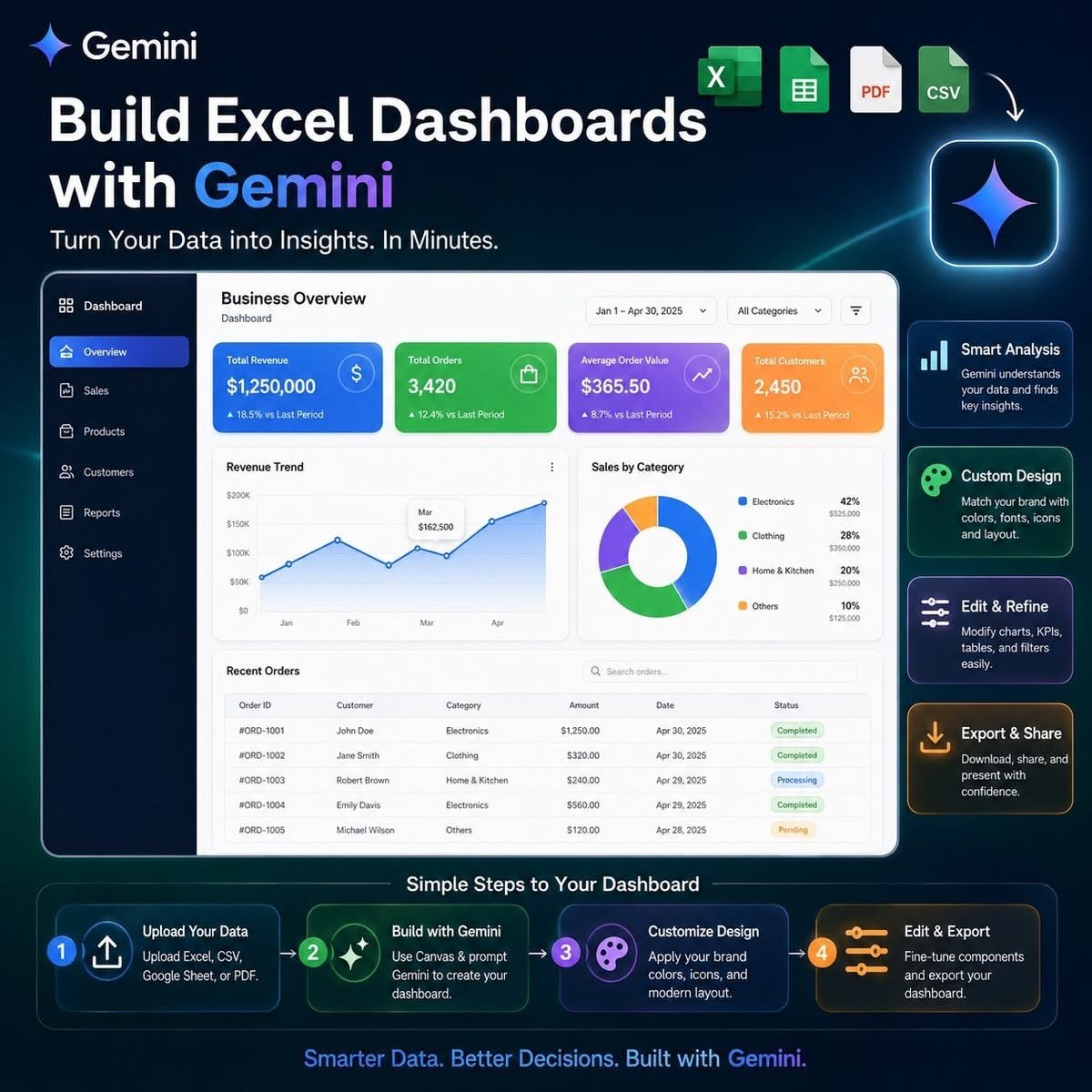
Learn how to build a CRM dashboard in Excel with Google Gemini. Track leads, sales pipelines, follow-ups, KPIs, and customer data using Excel tools.
Keeping track of client data, leads, follow-ups, and finances becomes difficult as data is stored on different spreadsheets. A complete Customer Relation Management (CRM) software could solve this problem. A freelancer, startup, or small business might not require a robust CRM software. Excel of Microsoft can create the CRM dashboard, while Gemini of Google can help in designing and creating the same.
When Google Gemini and Excel collaborate, they enable the organization of the customer’s data, calculation, KPI settings, sales analysis, and dashboard creation to visualize the company performance in a similar way to CRM. Gemini can serve as the AI assistant by offering guidance on how to create the spreadsheet and perform calculations, whereas Excel will provide all the components required for that (tables, formulas, Pivot Tables, graphs, and filtering).
What Is a CRM‑Style Dashboard in Excel?
The CRM-style Excel dashboard is a workbook containing customer and sales data that provides a summary of the performance of the company. Instead of going through the cumbersome process of opening a massive spreadsheet and scanning multiple rows, one can build a dashboard in Excel that gives instant access to crucial statistics, such as number of leads, open opportunities, deal pipeline, closed sales, and much more.
For example, a small business might maintain contacts in a database which include the day the lead came in, name, email, source, product or service sales status, deal size, follow-up date, and status. Excel can then pull this data onto a dashboard sheet.
This method makes Excel feel like a small CRM because the user can view each customer record and the big sales picture inside the same workbook.
How Google Gemini Can Help Plan an Excel CRM
One of the tasks when building a CRM dashboard is choosing what data to track. Few fields make the dashboard less useful and too many fields make the workbook hard to keep.
The Google Gemini tool can be used to help a user create an outline of the format before creating the spreadsheet. The relevant fields for one company will include Lead ID, Lead Name, Company, Email, Phone, Lead Source, Sales Stage of the Product/Service, Deal Value, Assigned Person, Date of Last Contact, Date of Next Follow-up, and Status.
The exact layout must mirror the company’s workflow. A real estate company may require property information and site visit information, while a consultancy may require the kind of service required, cost of the proposal, and the anticipated date.
Using Gemini while planning can help businesses build an Excel CRM that matches their workflow instead of using a generic template.
Creating a Sales Pipeline in Excel
A CRM dashboard should show where each possible customer stands in the sales journey. This can be done by setting up sales stages.
A basic pipeline might go from New Lead to Contacted, Qualified, Proposal, Negotiation, Won or Lost. Excel dropdown lists can keep users from typing different words for the same stage.
After stages are standardized Excel can. Total the value of opportunities in each stage. That data can then show on the dashboard as a sales pipeline chart.
Gemini can show users which pipeline stages fit their business and explain the Excel logic needed to sort and sum opportunities.
Using Google Gemini to Develop Excel CRM Formulas
Formulas turn a customer list into a working CRM‑style workbook.. People who do not use advanced Excel formulas daily may struggle to pick the right functions.
Gemini is capable of explaining how to use formulas like COUNTIF, COUNTIFS, SUMIF, SUMIFS, IF, XLOOKUP, FILTER, and TODAY. They have the capability of calculating CRM metrics and highlighting entries that need something done.
For example, Excel can count leads, calculate the value of open opportunities, revenue from closed opportunities, lost opportunities, average opportunity size, conversion ratio, or even customers who need to be contacted.
Gemini can also help people understand formulas and fix ones that give odd results. AI‑made formulas still need testing, against the real sheet before using them for major money or business choices.
Building a CRM‑Style Excel Dashboard
When the basic customer database is ready users can make a dashboard worksheet. This page shows the important business information so that no one has to look at each customer record one by one.
At the top of the dashboard users can set up KPI sections for Total Leads Opportunities, Pipeline Value, Won Revenue, Average Deal Value and Conversion Rate. These numbers give a summary of sales performance.
Below this, there may be some graphs that show the sales pipeline, sources of income leads, and sales performance. For instance, the sales pipeline graph may reveal the number of leads in each stage from New Lead, Qualified, Proposal, Negotiation to Won. There can also be a graph showing the main sources of the leads like Google, referrals, LinkedIn, social media, or others.
PivotTables and PivotCharts can be used through Excel for summarizing and presenting datasets. Filters like slicers allow interactive analysis of dashboards. Datasets can be filtered by the salesperson, month, sales process, product type, region, or lead sources without rebuilding the report.
Making Excel Look More Like a CRM Tool
A CRM‑style dashboard should look clean of like a usual spreadsheet full of unrelated cells. Workbook organization is therefore important.
A useful workbook might have tabs named as Dashboard, Leads, Customers, Follow-Ups, Sales Pipeline, and Reports. The Leads or Customers tab has data, whereas the Dashboard tab acts as the main visualization screen.
Consistent formatting, KPIs, graphs, tables, dropdowns, conditional formatting, slicers and so forth. Hiding of gridlines on the dashboard sheet will make the dashboard look more presentable.
The goal is not just to make Excel look nice. A good dashboard design should let users see the status of their sales pipeline in seconds.
Creating a Follow‑Up Tracker With Excel and Gemini
Customer follow‑up is a part of any CRM. A potential customer might be interested. May not decide right away. Without a tracker these chances can be forgotten.
An Excel CRM can add Contact Date and Next Follow‑Up Date fields. There is an Excel formula to check the follow-up date against today’s date to classify them as Overdue, Due Today, Upcoming, or Completed.
Conditional formatting can make these statuses easier to see. Overdue activities can stand out while completed activities stay recorded for reference.
Gemini can help users figure out the formula logic needed for this workflow. This lets an Excel workbook act as both a customer database and a basic follow‑up system.
Using Gemini and Excel to Analyze CRM Data
A CRM becomes more useful when the data is used for decisions of just stored. Once enough customer and sales data is collected businesses can analyze performance and spot patterns.
Users could be interested in finding out the marketing channel that brings in the most leads, the source of the most valuable customers, the sales cycle phase where the most stuck opportunities exist, the product lines that bring in the most money, or the top performing salesperson.
Gemini can help users pick business questions and decide how to set up the analysis. Excel can then do the calculations with formulas PivotTables, charts and filters.
This combo turns customer records into useful business insights.
Using Gemini Directly With Spreadsheet Data
An important difference exists between using Gemini on Google Sheets and Gemini on Microsoft Excel. Gemini works naturally with Google Sheets, where it may help you with tables, formulas, analysis, graphs, PivotTables, drop-downs, filters, and conditional formatting. In the case of working with Microsoft Excel, Gemini can be used as a stand-alone AI assistant that will help in planning the structure of the workbook, writing formulas, and explaining calculations.
Businesses should pick the method that fits their software. The core CRM ideas stay the same: data, standard statuses, calculated metrics, interactive filters and a visual dashboard.
Is an Excel CRM for Small Businesses?
An Excel based CRM is quite helpful for people like freelancers, consultants, startups, or small companies who need something that helps in lead tracking and sales monitoring. This can also help a new business to identify what they need from their CRM before buying any software.
However Excel has limitations. As a company grows Excel may require workflow, integration with emails, recording of activity histories, permissions, mobility, or cooperation between bigger sales forces. This is when a specialized CRM becomes a better choice.
The Excel approach is therefore best viewed as a starting point rather than a permanent replacement for every CRM system.
Protecting Customer Data When Using AI
Businesses should be careful when working with customer data along with artificial intelligence systems. Customer Relationship Management (CRM) data can consist of the name, email address, telephone number, financial data, contract details, or any other sensitive data related to the business.
Users have to comply with their organizations’ policies regarding privacy, security, and artificial intelligence before sharing any organizational data with the AI system. When Gemini helps in developing a spreadsheet without using customer data, then anonymous data can be used to help with formula creation, calculations, or CRM development.
This allows businesses to benefit from AI assistance while retaining control of their customer data.
Where We Go From Here
Google Gemini can make the process of creating a CRM-style Excel dashboard by helping users plan customer databases understand formulas, structure sales pipelines identify important KPIs troubleshoot spreadsheet problems and determine how business data should be analyzed.
Excel can then provide the tools required to implement that plan through tables, formulas, PivotTables, PivotCharts, conditional formatting, dropdown lists, filters, slicers and dashboard visualizations.
For businesses, freelancers, consultants and sales professionals this combination can turn an ordinary spreadsheet into a more structured customer-management and sales-monitoring system. Of manually searching through rows of customer information users can create a dashboard that immediately shows what is happening in the business and where attention is required.
The goal is not to make Excel replace every feature of a CRM platform. The goal is to use Google Gemini and Excel to make customer tracking sales analysis, follow-ups and everyday business decisions easier.
Asked Questions
Can Google Gemini create a CRM dashboard in Excel?
Gemini can help users plan the CRM structure develop formulas identify KPIs troubleshoot spreadsheet problems and design the dashboard workflow. Excel is then used to implement the dashboard.
Can Excel be used as a CRM?
Yes. Excel can function as a CRM for small businesses by tracking customers leads, sales stages, deal values, follow-up dates and sales performance.
What should an Excel CRM dashboard contain?
A useful CRM dashboard can include leads, active opportunities, pipeline value, completed revenue, conversion rate, lead sources, sales stages, monthly sales and upcoming follow-ups.
Can Gemini help with Excel formulas?
Yes. Gemini can. Help develop Excel formulas using functions such, as IF, COUNTIFS, SUMIFS, XLOOKUP, FILTER and date-related functions. Users should verify formulas before relying on them for business decisions.
Can an Excel CRM dashboard be interactive?
Yes. PivotTables, PivotCharts, slicers, dropdown lists, filters, formulas and conditional formatting can be combined to create a CRM-style dashboard.




1 comment on “CRM Dashboard in Excel With Google Gemini”